Traveling internationally used to mean one of three headaches: paying extortionate daily roaming rates to your home carrier, hunting down an airport kiosk to swap a physical plastic SIM card with a paperclip, or hunting for sketchy public Wi-Fi.
Digital eSIMs have transformed international travel. With providers like Airalo, you can download a prepaid local or regional data plan directly to your phone before boarding your flight. The best part? You can use local high-speed data abroad while keeping your primary home phone number active for two-factor authentication (2FA), banking alerts, WhatsApp, and urgent calls.
Here is an end-to-end, foolproof setup guide to installing, configuring, and troubleshooting your Airalo eSIM for smooth international travel.
1. Pre-Trip Checklist: Before You Buy
Before purchasing an Airalo eSIM package, check off three critical prerequisites to ensure compatibility:
- Carrier Unlock Status: Your device must be network-unlocked. If you are on an active carrier financing plan or contract, check with your provider to ensure your device isn’t SIM-locked.
- iOS: Go to Settings > General > About > Carrier Lock. It should state No SIM restrictions.
- Android: Go to Settings > Connections / Network & Internet > Mobile Networks or contact your carrier directly.
- eSIM Hardware Compatibility: Most modern smartphones support eSIM (iPhone XS and newer, Google Pixel 3 and newer, Samsung Galaxy S20 and newer). You can check Airalo’s official device list or dial
*#06#, if an EID number appears, your phone supports eSIM. - Stable Wi-Fi Connection: Always install your eSIM at home or in a hotel on a stable, private Wi-Fi network. Do not attempt initial setup over weak transit Wi-Fi.
2. When Should You Install vs. Activate?
A common point of confusion is the difference between installation and activation:
- Installation means downloading the eSIM profile onto your device’s motherboard. Do this at home 1-2 days before your trip.
- Activation is when the plan’s validity period (e.g., 7 days, 15 days, 30 days) starts ticking.
Pro Tip: Check the Additional Information tab of your chosen Airalo package. Most Airalo eSIMs only activate when they connect to a supported local network at your destination. A few activate immediately upon installation. If your plan activates on connection, install it before you leave so you have data the moment your plane lands.
3. Step-by-Step Installation Methods
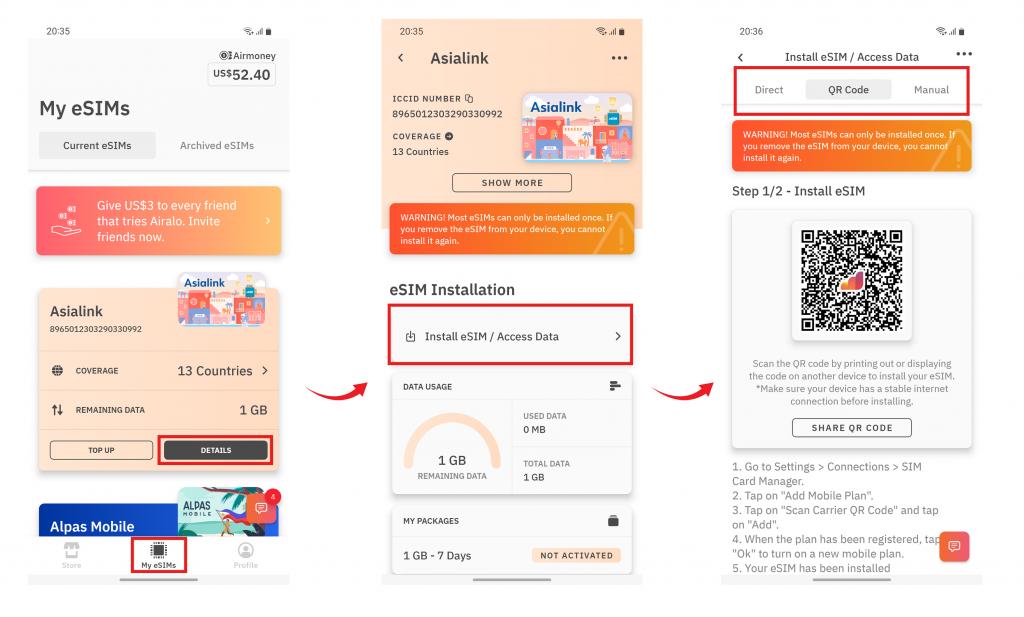
Airalo provides three installation methods: Direct, QR Code, and Manual.
Method A: Direct Installation (Easiest)
- Open the Airalo App on your phone.
- Go to My eSIMs and select the eSIM you purchased.
- Tap Install eSIM and select Direct.
- Follow the on-screen system prompts to allow the cellular profile to download automatically.
Method B: QR Code Installation
- Display the QR code on a second screen (laptop, tablet, or a travel partner’s phone) or print it out.
- iOS: Go to Settings > Cellular (or Mobile Data) > Add eSIM (or Add Cellular Plan). Scan the code.
- Android (Samsung/Pixel): Go to Settings > Connections > SIM Manager (or Network & internet > SIMs). Tap Add eSIM, then scan the QR code.
Method C: Manual Installation (Backup)
If the QR code fails to scan:
- Copy the SM-DP+ Address and Activation Code from the Airalo app under your eSIM details.
- In your phone’s cellular setup menu, choose Enter Details Manually and paste both strings.
4. The Dual-SIM Golden Rule: How to Keep Your Primary Number Active
The main reason travelers love eSIMs is dual-SIM capability. You can use Airalo solely for cheap high-speed data, while keeping your home SIM active for incoming SMS texts, OTP verification, and emergency calls.
Configuring Settings for iOS (iPhone)
| Setting | Selection | Why |
| Cellular Plan Label | Primary = “Home”, Airalo = “Travel” | Keeps your lines easily distinguishable. |
| Default Voice Line | Primary (Home) | Ensures your standard phone number handles calls and SMS. |
| iMessage & FaceTime | Primary (Home) | Keeps your blue bubbles attached to your real number. |
| Cellular Data | Travel (Airalo) | Routes all web browsing, apps, and maps through your cheap data pack. |
| Allow Cellular Data Switching | OFF | Crucial: Prevents your phone from silently using expensive home carrier data if the eSIM drops signal. |
Configuring Settings for Android (Samsung / Google Pixel)
- Go to Settings > Connections > SIM Manager (or Network & Internet > SIMs).
- Set Calls and Messages to your Primary / Home SIM.
- Set Mobile Data exclusively to your Airalo eSIM.
- Disable Data Switching / Backup Calling to avoid surprise domestic roaming charges.
5. What to Do Upon Landing (Activation Steps)
Once your plane touches down at your destination:
After Landing → Turn Airplane Mode Off → Turn Your Airalo eSIM On → Enable Data Roaming for the Airalo Line → Verify the APN
- Enable the eSIM Line: Toggle your Airalo eSIM line to On.
- Enable Data Roaming on Airalo: Go to the Airalo line settings and ensure Data Roaming is turned ON. Airalo requires roaming to connect with their regional partner networks.
- Ensure Data Roaming is OFF on Primary SIM: Double-check that roaming is toggled OFF on your home carrier SIM to avoid unexpected carrier fees.
- Set Network Selection to Automatic: Allow 2-5 minutes for your device to register with the local partner carrier (e.g., SoftBank in Japan, Orange in France, O2 in the UK).
6. Pro-Level Troubleshooting
If your status bar shows “No Service” or data isn’t moving, run through these quick fixes:
Issue 1: “Connected with Bars, but No Internet”
- Check the APN (Access Point Name): In the Airalo app, check the installation guide for your specific eSIM. Some networks require a custom APN (e.g.,
globaldataorwbdata).- iOS: Go to Cellular > Select Airalo eSIM > Cellular Data Network and verify the APN field.
- Android: Go to Mobile Networks > Access Point Names and update accordingly.
Issue 2: Stuck on “Searching…” or “No Service”
- Toggle Airplane Mode on for 15 seconds, then off.
- Turn off Automatic Network Selection in your eSIM settings and manually choose one of the supported carriers listed in your Airalo app package details.
- Restart your phone to force a fresh handshake with local cell towers.
Issue 3: Receiving Unexpected Roaming Charges
- Ensure your home carrier’s “Data Roaming” toggle is explicitly disabled.
- If your carrier charges for incoming SMS/calls abroad, contact them before departure to enable international call blocking while leaving SMS receiving active (which is often free).
Frequently Asked Questions
Will my WhatsApp switch to a random foreign number?
No. When you open WhatsApp after installing your eSIM, it may ask: “We noticed a SIM change. Do you want to update your number?” Always select “Keep My Existing Number” (or “Use Existing”). Your chats, groups, call logs, and contacts remain completely unchanged.
Can I hotspot my laptop or tablet using Airalo?
Yes, in most cases. Most Airalo eSIM plans fully support personal hotspots and tethering. Always check the “Additional Information” section of your specific regional plan, as a small handful of local telco partners occasionally restrict hotspot usage.
Does an Airalo eSIM give me a local phone number for calls?
Most standard Airalo eSIMs are Data-Only. You will not get a local phone number for dial-up calls or SMS. Instead, use VoIP apps like WhatsApp, FaceTime Audio, Telegram, Skype, or Google Meet. If you require a real dial-in phone number, look for Airalo’s Discover+ Global eSIMs, which include dedicated minutes and texts alongside international data.
Can I reuse or top-up the same eSIM for my next trip?
If you are returning to the same destination within the validity lifecycle, you can simply purchase a Top-Up directly inside the Airalo app without installing a new eSIM profile. If your eSIM has expired and does not support top-ups, simply delete the old profile and install a fresh one.